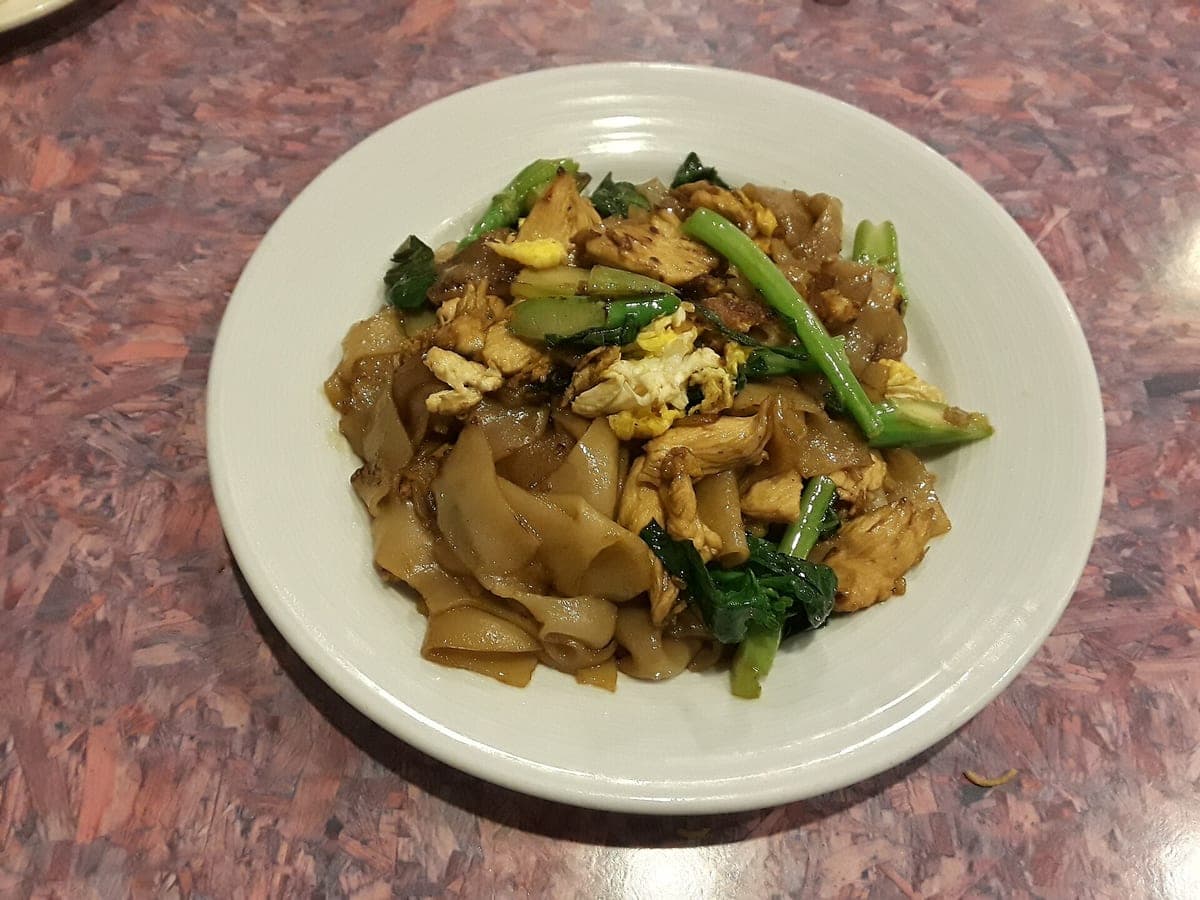
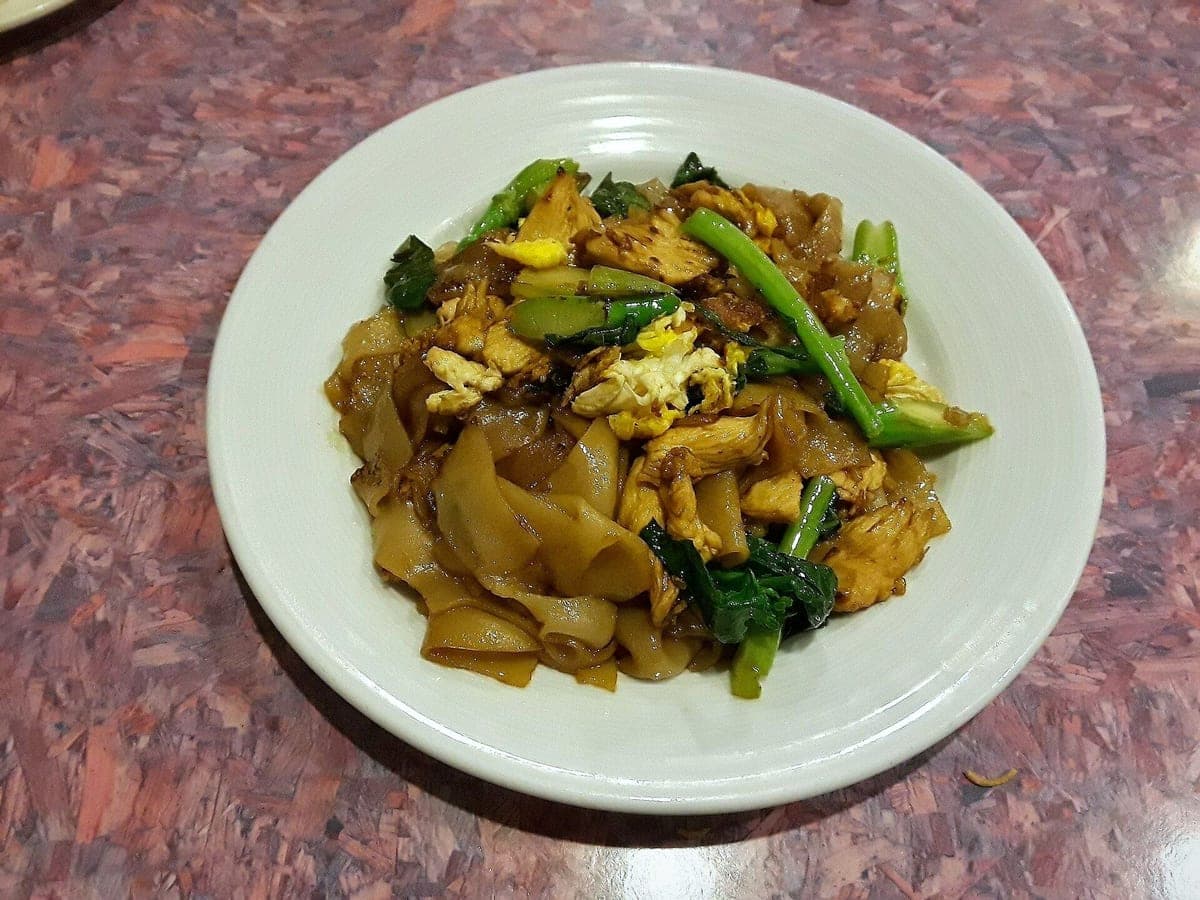
Pad see ew
Before: Galaxy J7, unedited · After: Delivery Ready look
Photo: Ser Amantio di Nicolao · CC0
DoorDash · 1600×900
Look: DELIVERY READY ·
3 free · no sign-up · sized for DoorDash, Uber Eats & Grubhub
JPG, PNG, WebP or HEIC · up to 10 MB · we improve the photo, not the food
Before: Galaxy J7, unedited · After: Delivery Ready look
Photo: Ser Amantio di Nicolao · CC0
DoorDash · 1600×900
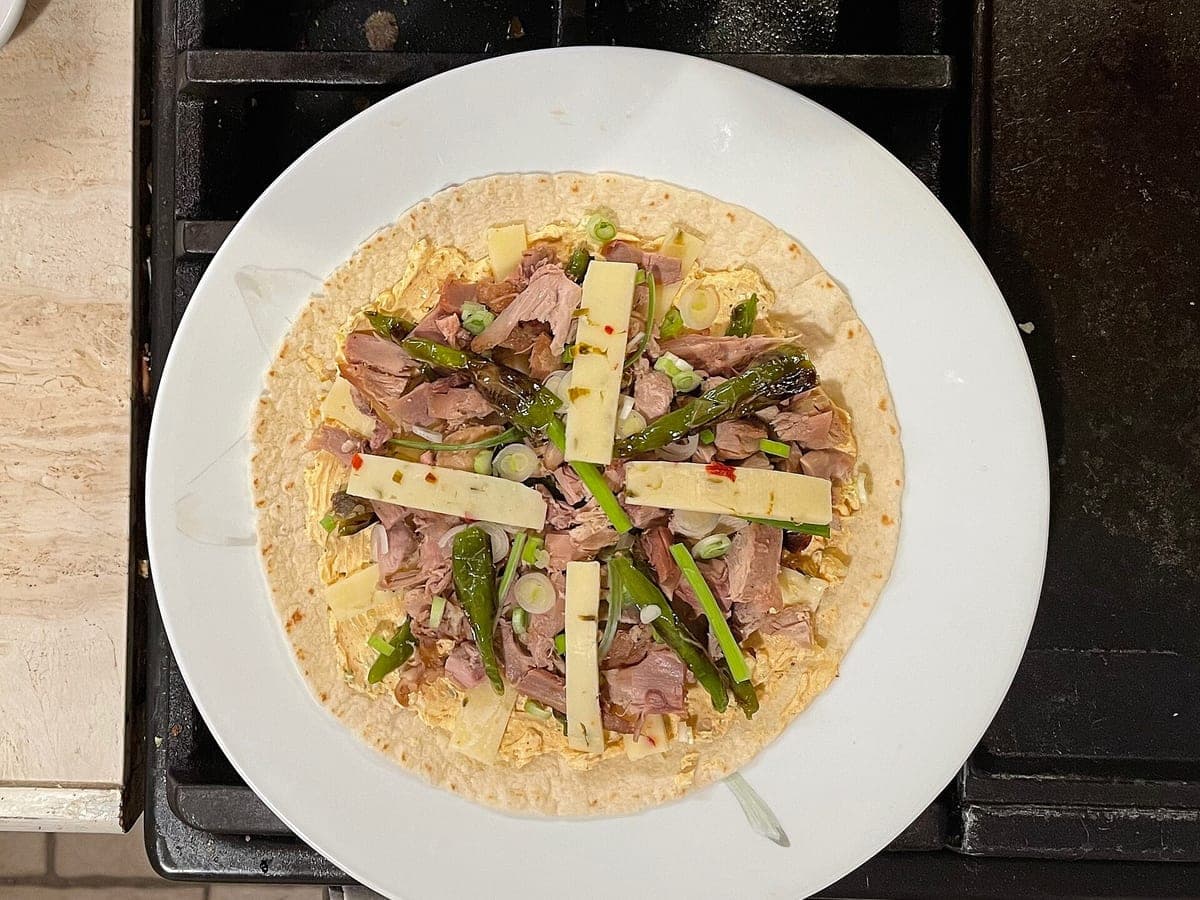
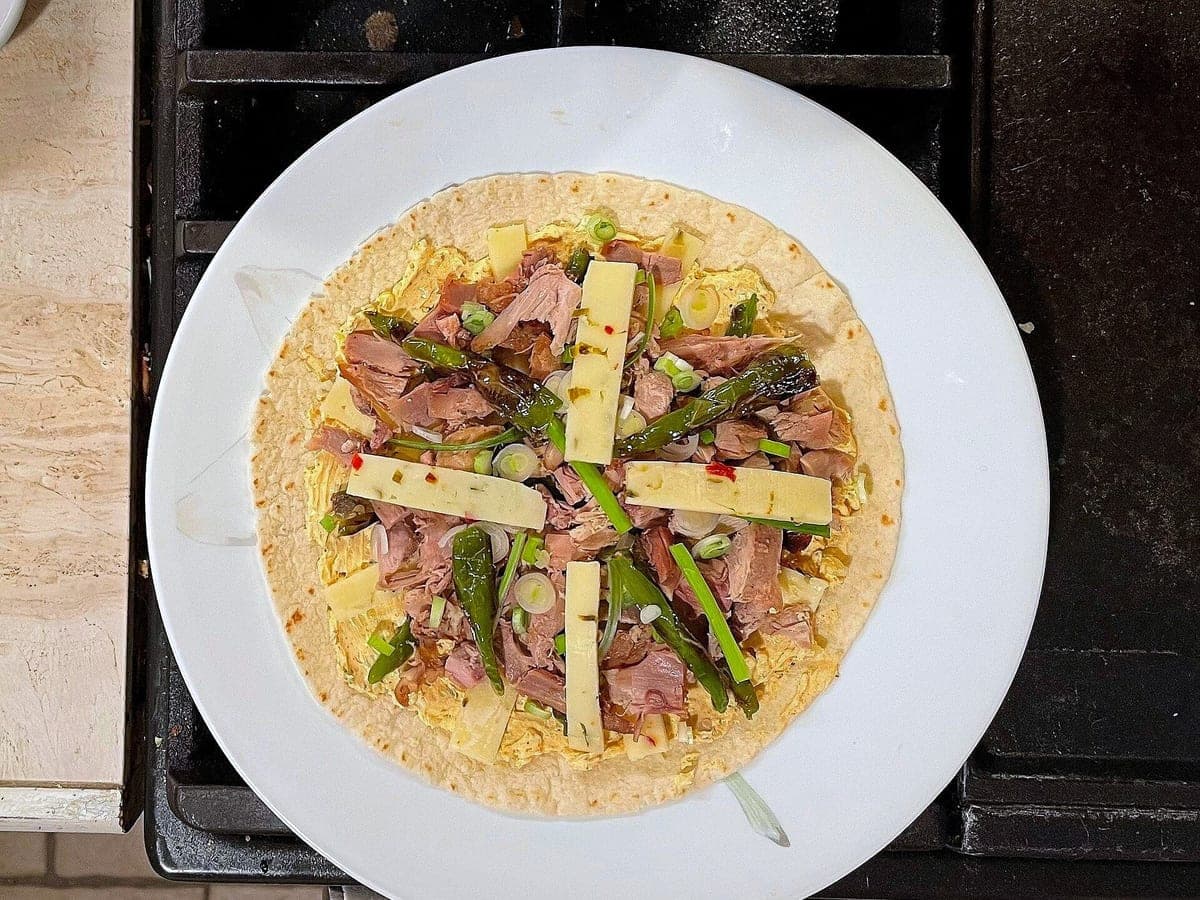
Before: iPhone 12 Pro Max, unedited · After: Delivery Ready look
Photo: Key West Wedding Photography · CC BY 2.0
DoorDash · 1600×900
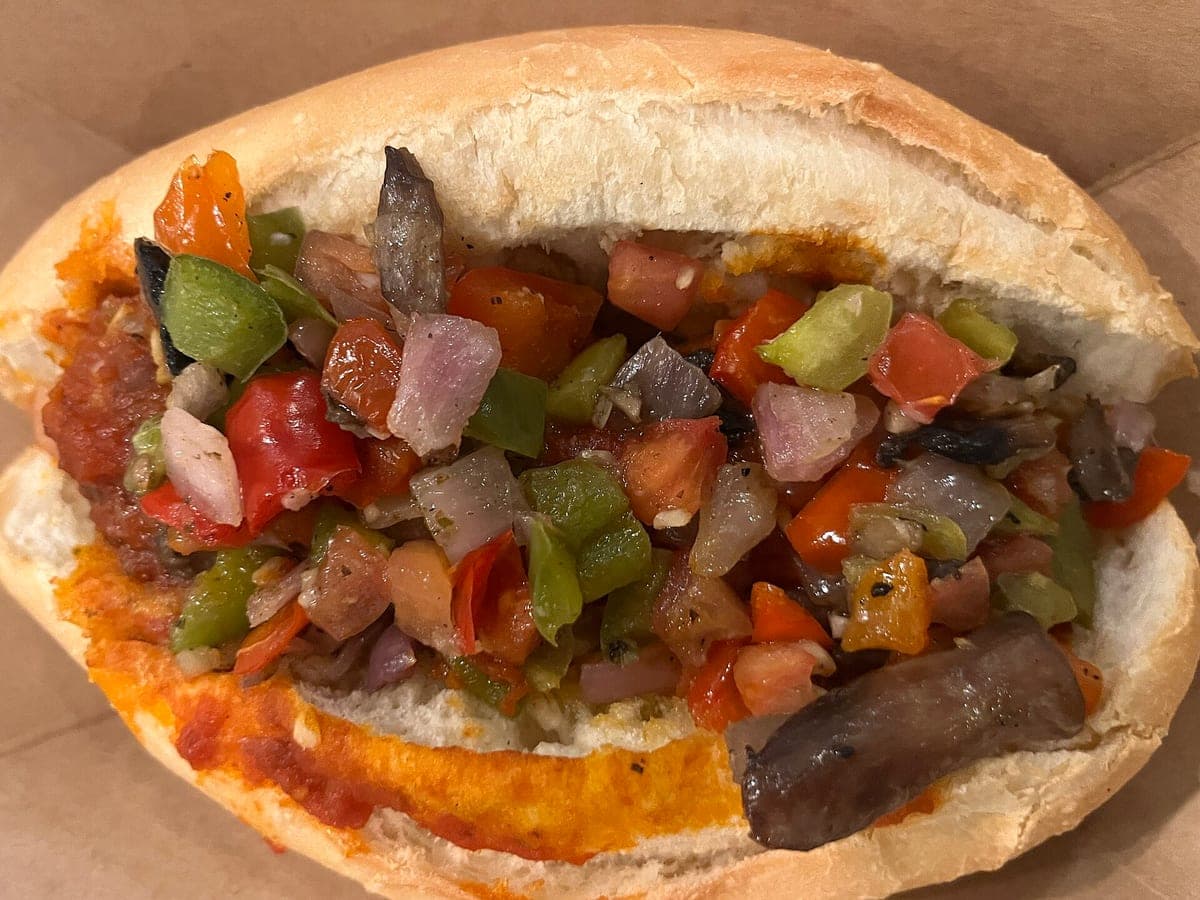
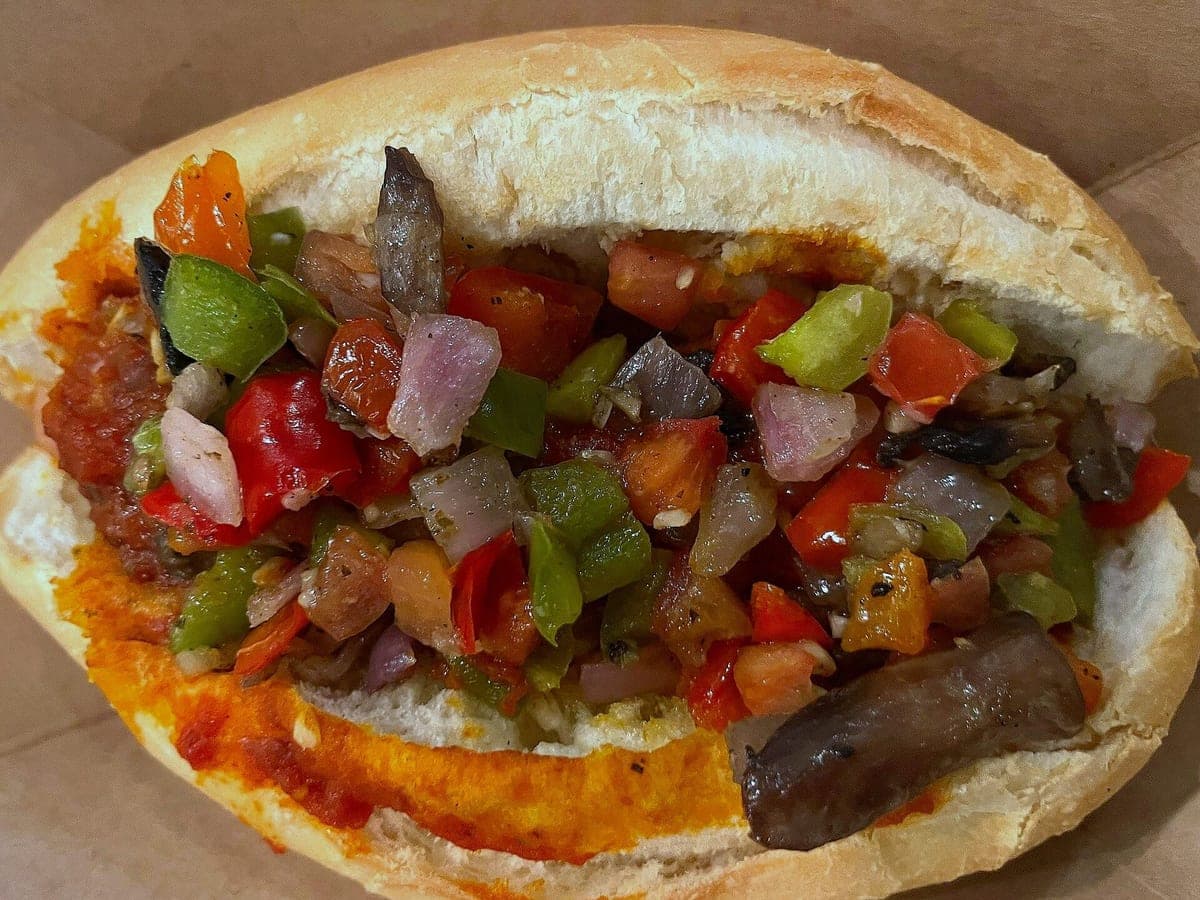
Before: iPhone 13, unedited · After: Delivery Ready look
Photo: Benoît Prieur · CC0
DoorDash · 1600×900
DoorDash wants item photos that show customers exactly what they’ll get. In practice that boils down to a handful of checks: it’s the real item, there’s no text or branding on top of it, it’s framed landscape with the food clearly visible, and the file is big and sharp enough to look good on a phone.
This page turns those checks into a list you can run through before you upload, with what to look up in DoorDash’s own merchant help and what our DoorDash download already does. If you’d rather skip the guesswork, upload your dish at the top of the page; the DoorDash crop comes ready.
The usual reasons are easy to avoid: a logo sticker on the container, a “NEW” banner or price added in an app, a stock photo of a dish that isn’t yours, or a photo so dark or blurry the food is hard to make out. DoorDash may also add or swap photos for items that don’t have good ones, so uploading a clear photo of each item is the best way to control how your menu looks.
Download the DoorDash size from your result. In the Merchant Portal, open Menu, pick the item, and replace or add its photo. Uploads can take a little while to show up in the app. If DoorDash flags a photo, read the reason, fix that one thing and upload again; menus and portal screens change, so follow DoorDash’s current steps if they differ.
The photo at the top of your store page is a different slot from item photos, usually with its own size and rules. Check the portal for its current size before uploading. Our 16:9 file is made for item photos; for a header, start from the menu-size (4:3) download and crop to what the portal asks for.
Run through this before every upload. The middle column is what to confirm in DoorDash’s current guidance; the right column is what our DoorDash file does.
| Check | What to confirm with DoorDash | Our DoorDash file |
|---|---|---|
| Real item | The photo must show the item as the customer receives it | Made from your own photo; the food is never changed |
| Text and branding | No text, prices, logos, watermarks or borders on the photo | None on the HD download |
| Orientation | Landscape framing, food filling the frame without being cut off | 16:9 crop with the dish kept inside the safe zone |
| Minimum size | The current minimum width and height in pixels | 1600×900 pixels |
| File type and weight | Accepted formats and the maximum file size | JPEG, well under typical upload limits |
| One item | No other dishes that could look like part of the order | Background is cleaned; nothing is added to the plate |
| Quality | In focus, well lit, no heavy filters | Evenly relit, sharp, natural color |
DoorDash publishes a minimum size and a landscape ratio in its merchant help. Our DoorDash download is 16:9 at 1600×900 pixels. Confirm the current minimum on DoorDash’s page before uploading.
Enhancing light, background and framing of a photo of your real item is normal photo editing. What matters is that the photo shows what the customer gets, which is the rule our tool is built around.
Delivery apps sometimes add or swap photos for items without a good one. Uploading a clear, real photo of each item yourself is the simplest fix.
Photos never expire. Every photo includes all 6 sizes. Start with 3 free.
Taster
10photos
$15
$1.50/photo
Good for: trying it on your best sellers
Menu Pack
40photos
$39
$0.98/photo
Good for: a full delivery menu
Multi-Menu
120photos
$99
$0.83/photo
Good for: several brands or locations
Not affiliated with or endorsed by DoorDash, Uber Eats or Grubhub. Trademarks belong to their owners.